How to create a 2 column Flexbox layout in React Native
Learn how to create a 2 column Flexbox layout in React Native using flex-wrap, with adjustable column counts and spacing between elements.
Creating a two column layout in React Native, given a list of items, is quite a common task. This react native 2 column layout can be achieved quite easily using flex. The example below shows how to achieve the two-column layout with spacing between the elements.
This is our view:
<View style={styles.container}>
    <View style={styles.itemContainer}><View style={styles.item}><Text>{'item1'}</Text></View></View>
    <View style={styles.itemContainer}><View style={styles.item}><Text>{'item2'}</Text></View></View>
    <View style={styles.itemContainer}><View style={styles.item}><Text>{'item3'}</Text></View></View>
    <View style={styles.itemContainer}><View style={styles.item}><Text>{'item4'}</Text></View></View>
    <View style={styles.itemContainer}><View style={styles.item}><Text>{'item5'}</Text></View></View>
    <View style={styles.itemContainer}><View style={styles.item}><Text>{'item6'}</Text></View></View>
    <View style={styles.itemContainer}><View style={styles.item}><Text>{'item7'}</Text></View></View>

</View>
And this is our style:
const styles = StyleSheet.create({
  container: {
    flex: 1,
    flexDirection: 'row',
    flexWrap: 'wrap',
    alignContent: 'flex-start'
  },
  itemContainer: {
    width: '50%', // 50% -> 2 columns | 33% -> 3 columns | 25% -> 4 columns
    height: '100px'
  },
  item: {
    padding: '8px',
    margin: '8px',
    backgroundColor: '#EEEEEE',
    height: "calc(100% - 8px)"
  }
})
The result looks like this:
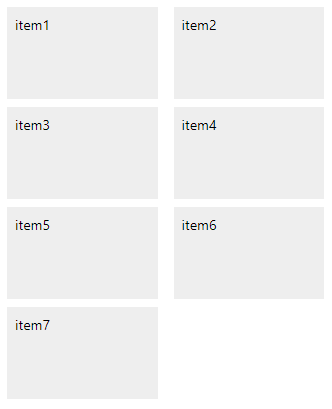
To adjust the number of columns, simply change the width property of the itemContainer. 50% will result in 2 columns, 33% will be 3 columns, 25% will be 4 columns, 20% will be 5 columns, and so on.
You can play with this code live, here.