How to start programming with C#
A beginner's guide to getting started with C# programming, from setting up Visual Studio to writing your first program and finding learning resources.
C# is a modern, general-purpose, object-oriented programming language developed by Microsoft. It is widely used for Windows desktop applications, games (especially using the Unity engine), and web development through the ASP.NET framework.
C# is considered to be beginner-friendly and is a great language for new programmers. Below we explore some of the reasons why C# is considered beginner-friendly:
- Syntax – the syntax of C# is clear, consistent, and easy to understand, which is ideal for beginners. Also, if you know C# it’s relatively easy to pick up other C-like languages (Java, C++).
- Strongly-typed language – being a strongly-typed language, C# ensures you define what type of data you are working with, such as integers or strings. This can lead to less error-prone code.
- IDE support – C# has robust IDE support, with tools like Visual Studio and Visual Studio Code providing features like IntelliSense (auto-completion of code), debugging, and a host of other utilities which makes the coding experience smooth and manageable for beginners.
- Comprehensive documentation and community – Microsoft provides detailed documentation for C#. Also, there is a large and active community for C# that can help answer questions and solve problems you might encounter.
- Object-oriented programming – C# is fundamentally object-oriented. Learning about classes, objects, inheritance, and polymorphism are critical to developing large-scale software and game development, and C# is a great language to learn these concepts.
- Wide range of uses – learning C# opens up opportunities to program for a wide range of platforms, including Windows applications, websites with ASP.NET, and game development with Unity.
- Error handling – C# is good at pointing out mistakes in code. It is designed to stop compiling code as soon as it encounters errors, helping new programmers to easily spot and fix their mistakes.
Getting started
The first thing to do is to set up your environment. You can use any operating system to write C# and there are multiple choices when it comes to editors as well. You can even write and run C# code in the browser on your phone or tablet using websites like .NET Fiddle.
A typical developer environment would be Visual Studio running on Windows. Visual Studio comes with a free Community edition which you can download from here. Once you’ve downloaded the installer, proceed through the install wizard with the default workloads, and once it’s finished, you should have everything ready to write your very first C# program.
Writing your first line of C# code
C# code files are written and compiled part of a project. Multiple projects make up a solution. In order to get started, we’ll need to create a New Project first. You can use the Quick actions in the Welcome page to create a new C# project.
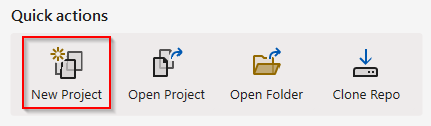
Quick actions in Visual Studio 2022, with New Project highlighted.
To start simple, we’ll want to create a new console application. Search in the list of templates for ‘console’ and choose the one which has the C# badge as indicated below:
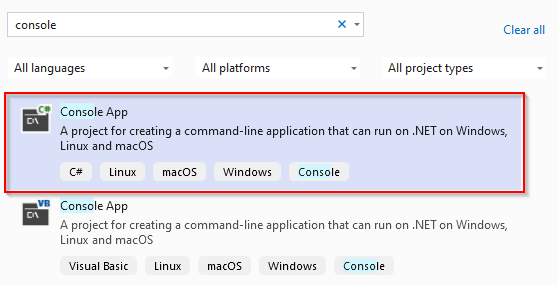
A list of project templates in Visual Studio 2022, with the C# console application template highlighted.
Continue through the wizard using the default values and you should end up in a state similar to this:
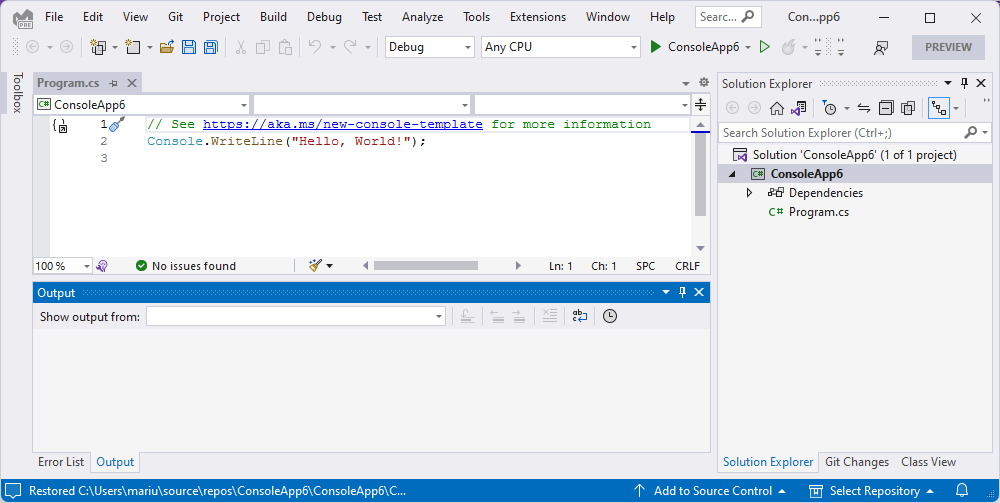
Visual Studio 2022 showing a new C# console application using top-level statements.
On the right, you have your Solution Explorer, which shows your solution, your project, and your code file: Program.cs. The file extension: .cs – stands for CSharp (C#). All your C# code files will have the same extension.
In the center of your editor you have this Program.cs file open. The file contains two lines of code.
- Line 1: this line represents a comment in C#. Anything that’s written after
//on the same line is a comment and it’s ignored by the compiler and not executed when you run the program. Comments are used to explain code, and they’re especially useful for reminding yourself and others about the purpose and the details of the code. - Line 2: This line of code writes the string “Hello, World!” to the console, and then terminates the current line.
Consoleis a static class in theSystemnamespace, representing the standard input, output, and error streams for console applications. This class is most often used for reading from and writing to the console.WriteLineis a method in theConsoleclass. This method writes a line to the standard output stream, which is usually the console. The line to be written is passed as an argument to this method. In this case, it’s the string “Hello, World!”.- The semicolon
;at the end of the line signifies the end of the statement, similar to a period at the end of a sentence in English.
Next, let’s run the program and see what it outputs. To compile and run the program, you can use the Run button in the toolbar, or simply press F5.

A toolbar in Visual Studio 2022, having the Run button highlighted.
Visual Studio will first compile your project and then execute it. This being a console application, a console window will show up, with the message “Hello, World!” on the first line.

A console window displaying “Hello, World!”.
Learning resources
Now that your environment is properly set up and you’ve run your first C# program, it’s time to start learning more about the language. To that end, there are several great resources available to get you started. We’ll enumerate a few below:
- Microsoft Learn – Microsoft’s official platform offers several free C# learning paths, modules, and tutorials. It’s a great resource to learn C# directly from the source.
- Codecademy – Codecademy provides interactive lessons and projects that can help you learn C#. It’s beginner-friendly and the interactive nature of learning is highly effective for many learners.
- Coursera – Coursera offers courses from universities and companies. The C# Programming for Unity Game Development specialization from the University of Colorado is a good course if you’re interested in game development.
- Pluralsight – Pluralsight has a comprehensive library of C# courses covering beginner to advanced topics. It’s a paid platform but offers a free trial.
- Udemy – Udemy has a wide variety of C# courses for different levels and uses, including web development with ASP.NET, game development with Unity, etc. Wait for their frequent sales to get a good deal.
- LeetCode – LeetCode is a problem-solving platform where you can practice coding in C#. It is not a tutorial site but it is invaluable for practicing and improving your skills once you know the basics.