How to publicly expose your local SignalR service for consumption by mobile clients using ngrok
Use ngrok to publicly expose your local SignalR service so mobile clients can connect without network configuration or SSL workarounds.
When dealing with mobile clients, it’s not always easy to get them on the same network as your development machine and even when you do, localhost will have a different meaning so you need to use IPs and change bindings and disable SSL or trust self-signed certificates, in short it’s a pain.
Say hello to ngrok.
ngrok allows you create a secure public proxy which will route all requests to a specific port on your development machine. The free plan allows for HTTP/TCP tunnels on random URLs and ports for only one process + a maximum of 40 connections/minute. This should be more than enough for most. Should you need reserved domains or custom subdomains – and increased limits –, there are paid plans as well.
Let’s get started
First, go and register an account on ngrok, download their client and extract it to a preferred location then, following the Setup & Installation guide, run the ngrok authtoken command to authenticate.
Next, start your web application and look at its URL. Mine is https://localhost:44312/, which means we’re interested in forwarding port 44312 over https. So in the same cmd window which you used to authenticate, run ngrok http `https://localhost:44312/` – of course replacing https://localhost:44312/ with your application’s URL. This will start your proxy and show you the public URLs which you can use to access it.
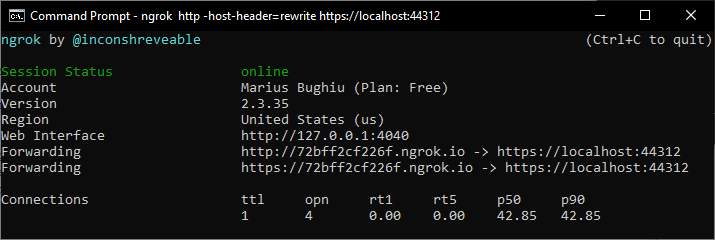
If you are not using HTTPS, then you can use the shorter ngrok http 44312.
If you receive a 400 Bad Request – Invalid Hostname, it means someone is trying to validate the Host header and fails to do so because they don’t match – as ngrok by default passes everything to your web server without manipulating it. To rewrite the Host header, use the -host-header=rewrite switch.
In my case – using ASP.NET Core + IIS Express, my full command is this:
ngrok http -host-header=rewrite https://localhost:44312
Now, copy the URL from the window above and update it in your clients. Careful that every time you start/stop ngrok, the URL will be different on the Free plan.
Try it out!
You can easily try this yourself by cloning this repository – Xamarin Forms SignalR Chat, run the .Web project and exposing it through ngrok as explained above. Then replace the ChatHubUrl in appsettings.json with the one generated for you by ngrok.