Use your Android phone as a webcam for Streamlabs
Turn your old Android phone into a webcam for Streamlabs OBS using DroidCam, with step-by-step setup instructions.
Need a webcam to use for streaming? Why not use one of the broken/outdated phones you currently have lying around the house?
Most phones are capable of taking pictures and recording at a higher resolution and with a better quality than your typical webcam. This makes them an ideal replacement for a webcam when streaming, especially when you have one just lying around.
I recently ended up with a Google Pixel 2 XL with a defective screen. Long story short, I cracked the screen, replaced it and 8 months later the replacement screen failed. And because of the cost and lack of warranty I decided to draw the line and not replace the screen again. So I ended up with a defect smartphone but with a perfectly functioning awesome camera.
So let’s get started. To use your Android phone as a webcam you will need two things:
- DroidCam Wireless Webcam for Android
- and the Windows or Linux client app which you can download from here
First, download and install the app on your Android phone. Once installed, go through the setup wizard, give the app the required permissions (to record audio and video) and you’re done. The app should now display information like the IP address and port on which it’s streaming the video. Keep that handy, we’ll need it in the next step.
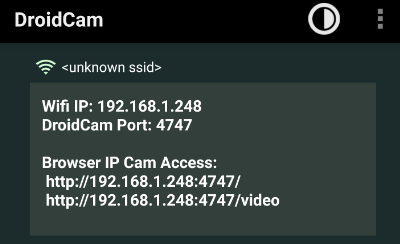
Next, you need to download and install the client for Windows or Linux. Once you’re done installing launch the app and fill in the IP address and port number just as they show up in the Android application.
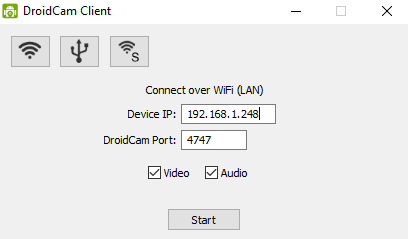
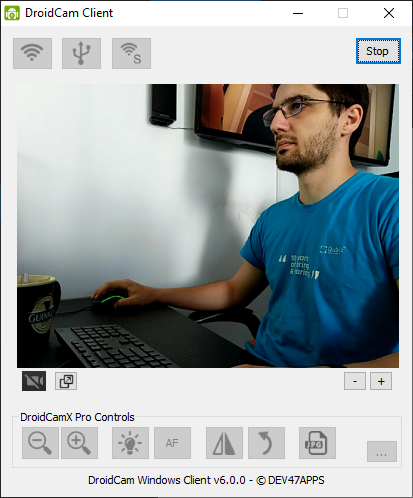
When you’re ready, hit Start. And voila, your brand new webcam!
Final step is adding the video source into Streamlabs. To do so, open up Streamlabs OBS and click + to add a new Source.
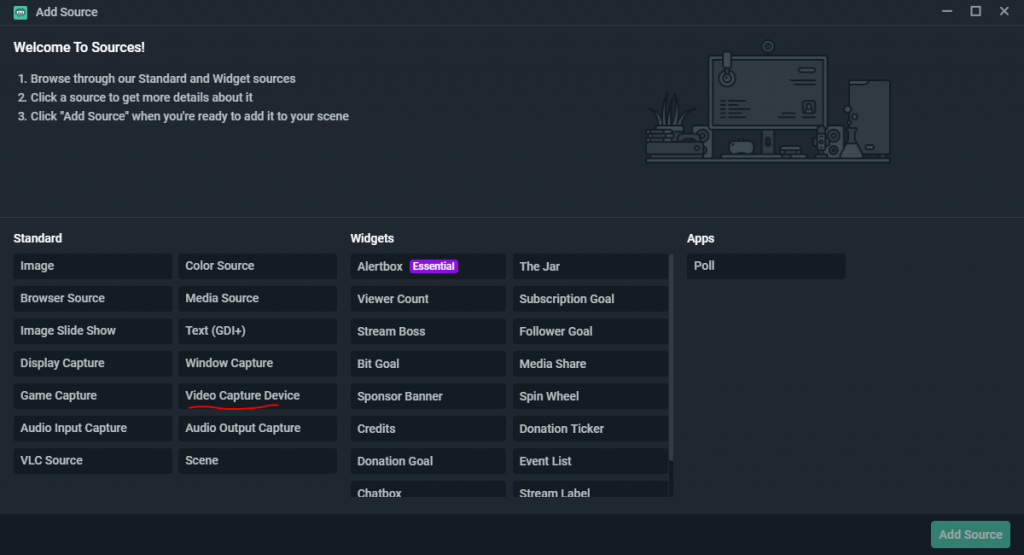
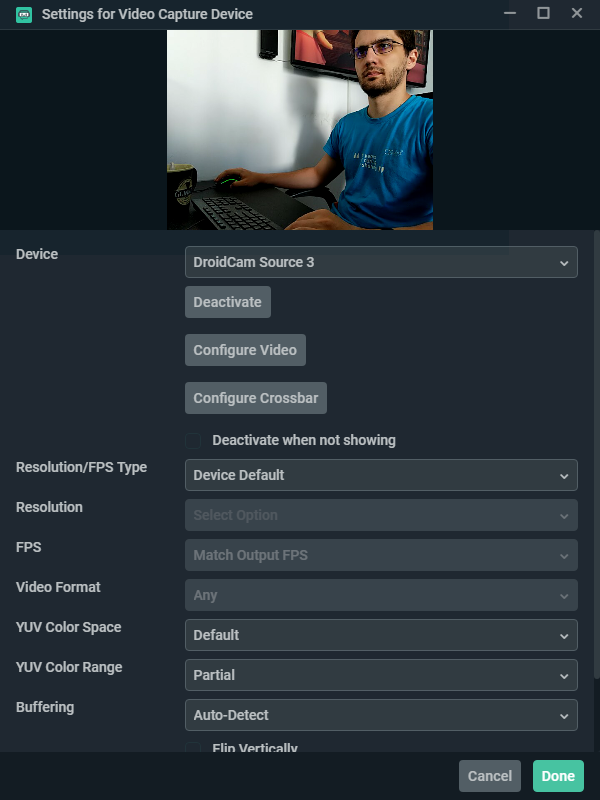
In the popup that opens select Video Capture Device and click Add Source. In the next screen just click Add New Source. Now you get to play with the settings for the device. First, select the DroidCam from the Device dropdown – in my case it’s called DroidCam Source. Then play around with the setting until you get the desired result; for me the defaults worked just fine. When you’re finished, click Done.
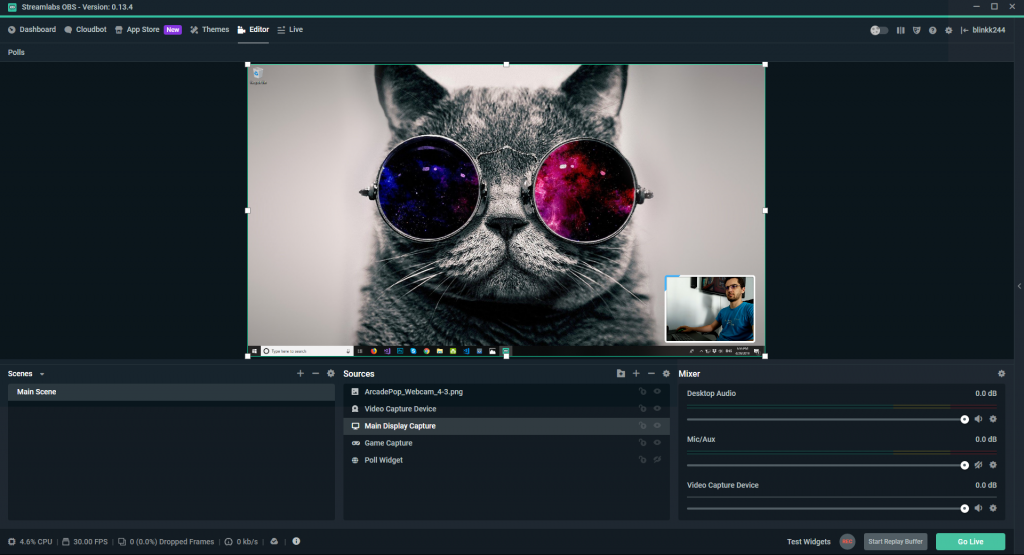
Now you get to drag the video source around your scene and resize it as you want. Once you’re ready, you can start streaming.
Tip
One of the problems when using phones as webcams is getting them to sit in a steady position, preferably at a certain height and angle. You can solve this problem using a smartphone tripod.
I ended up going with a Huawei AF14 as it was the cheapest option that fit my needs. Once you get the tripod, set it up at an angle that suits you and at a height close to your eye level.